Translations:Инструкция по работе виджета событий/1/en
== Widget Description == This widget allows users to utilize event functionality across multiple devices simultaneously. That means, if users have several devices/screens, each playing its own stream, a button press on the remote control will trigger the widget to simultaneously start playing the desired event on all three devices, interrupting the current broadcast. After the event playback is complete, the widget stops functioning and the original broadcasts on the devices resume.
== Adding the Widget to the Personal Account == To add this widget to the personal account, the user must request it from the SmartPlayer support team. It will be provided as a ".zip" archive.

Next, the user must log into their personal SmartPlayer account and go to the "Content" section.

In the "Content" section, drag the widget from local storage into the "Content" area. After uploading, the widget will appear in the content list.

== Widget Setup == After uploading the widget to the "Content" section, the user should double-click the widget icon to start the initial setup. This action opens the widget's homepage.

On the homepage, users can access the widget settings by clicking the gear icon.

== Widget Configuration Parameters == After entering the widget settings, the user will see two configuration blocks:
- Font size and background;
- Button and button group settings.

=== Font Size and Background === This block includes the following parameters:
- Language selection — allows the user to choose from available localizations: Russian, English, Spanish, Portuguese, Kazakh;
- Font size — allows the user to set font size via value or slider;
- Widget background — allows the user to set the background using a palette;
- Background image — allows selection of an image from available files in the personal account.

Example of background settings

=== Button and Button Group Settings === This block includes the following parameters:
- "Add Button" button — opens a window with the following parameters:
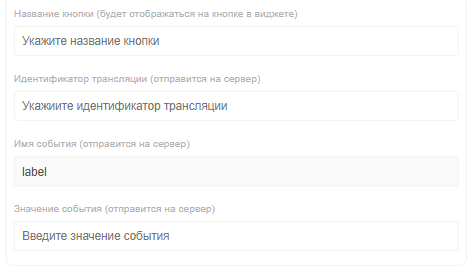
Example of button parameter list - Button name — user must enter the button label;
- Broadcast ID — user must find the desired broadcast, click on it, and copy the "broadcastid" value from the URL;

Example of broadcast ID - Event name — the event label known to the server (default and always "label");
- Event value — the value used when creating the event in the broadcast. It is configured by selecting "server application" and defining it by "payload." Enter the required value in the broadcast.

Example of event value configuration You can learn more about the trigger-event model here - "Add Group" button — opens a window with two parameters:
Example of button parameter list - Group name — allows the user to create a container for storing grouped buttons;
- Add button — the same functionality described above.

Example of group configuration parameters


